
Find step-by-step guides for common internet concerns, modem settings, Wi-Fi troubleshooting, and subscriber support. Browse our downloadable guides or submit a support request if you need further assistance.
Before changing your modem settings, first check whether there is an announced service interruption.
If your modem displays a red LOS indicator, please contact NCTV Support before making any configuration changes.
Choose a category below to quickly find troubleshooting guides, Wi-Fi information, or subscriber support.
Learn how to change your Wi-Fi name and password, identify your modem model, and access supported modem settings.
Resolve common connection problems such as no internet, slow speeds, intermittent service, and red LOS indicators.
Understand Wi-Fi coverage, router placement, device limitations, and the factors that can affect wireless performance.
Submit a support request for connection issues, cable TV concerns, account assistance, or technician service.
Select your modem model below to view step-by-step guides for changing your Wi-Fi name and password or accessing supported modem settings.
Learn how to access your Kingtype ONU, change your Wi-Fi name and password, and perform basic modem configuration.
Learn how to access your BDCOM ONU, change your Wi-Fi name and password, and perform basic modem configuration.
Learn how to access your Skyworth ONU, change your Wi-Fi name and password, and perform basic modem configuration.
Learn how to access your Optictimes ONU, change your Wi-Fi name and password, and perform basic modem configuration.
Follow these quick checks to resolve common internet issues before contacting NCTV Support.
If your modem shows a red LOS light, do not reset or change its configuration. Contact NCTV Support instead.
Before proceeding, check whether NCTV has announced a service interruption in your area.
✓ Check that the ONU is connected to power.
✓ Confirm that the Power and PON indicators are lit.
✓ Check the Ethernet and fiber cables for loose connections.
✓ Restart the ONU and wait three to five minutes.
✓ Test the connection using another device.
⚠ Do not reset the ONU to its factory settings.
Internet speed can be affected by Wi-Fi signal strength, the number of connected devices, and the capabilities of the device being used.
✓ Run a speed test while connected via Ethernet whenever possible.
✓ Disconnect devices that are not currently in use.
✓ Move closer to the ONU if you are connected through Wi-Fi.
✓ Restart the ONU and wait three to five minutes.
✓ Test the connection using another device.
⚠ Speed tests performed over Wi-Fi may be lower than your subscribed plan due to signal strength, interference, and device limitations
An unstable connection may result from wireless interference, loose cable connections, or temporary service interruptions.
✓ Ensure all Ethernet and fiber cables are firmly connected.
✓ Place the ONU in an open area away from large appliances and thick walls.
✓ Move closer to the ONU if you are connected through Wi-Fi.
✓ Restart the ONU and wait three to five minutes.
✓ Test the connection using another device.
✓ Observe whether the issue occurs at specific times of the day.
⚠ If only one device experiences disconnections, the issue may be related to that device rather than your internet service.
A red LOS (Loss of Signal) indicator usually means the ONU is not receiving an optical signal from the NCTV network.
✓ Check that the fiber cable is securely connected.
✓ Inspect the fiber cable for sharp bends, cuts, or damage.
✓ Ensur ethe ONU is powered on.
✓ Restart the ONU and wait three to five minutes.
⚠ Do not disconnect or attempt to repair the fiber cable yourseelf. Do not reset the ONU to factory settings. A red LOS indicator generally requires technical assistance.
Restarting the ONU correctly can resolve temporary connectivity issues without affecting your settings.
✓ Turn off the ONU using the power button or unplug the power adapter.
✓ Wait approximately 30 seconds.
✓ Turn the ONU back on.
✓ Allow 3–5 minutes for the Power and PON indicators to stabilize.
✓ Test your internet connection.
⚠ Do not repeatedly restart the ONU within a short period. Avoid pressing the Reset button, as this may erase your configuration.
If the troubleshooting steps above didn’t resolve your issue, our support team is ready to help.
Learn how your Wi-Fi works, what affects its performance, and how to get the best connection throughout your home.
For the most accurate speed test:
If your speed is still significantly lower while standing beside the ONU, contact NCTV Support for assistance.
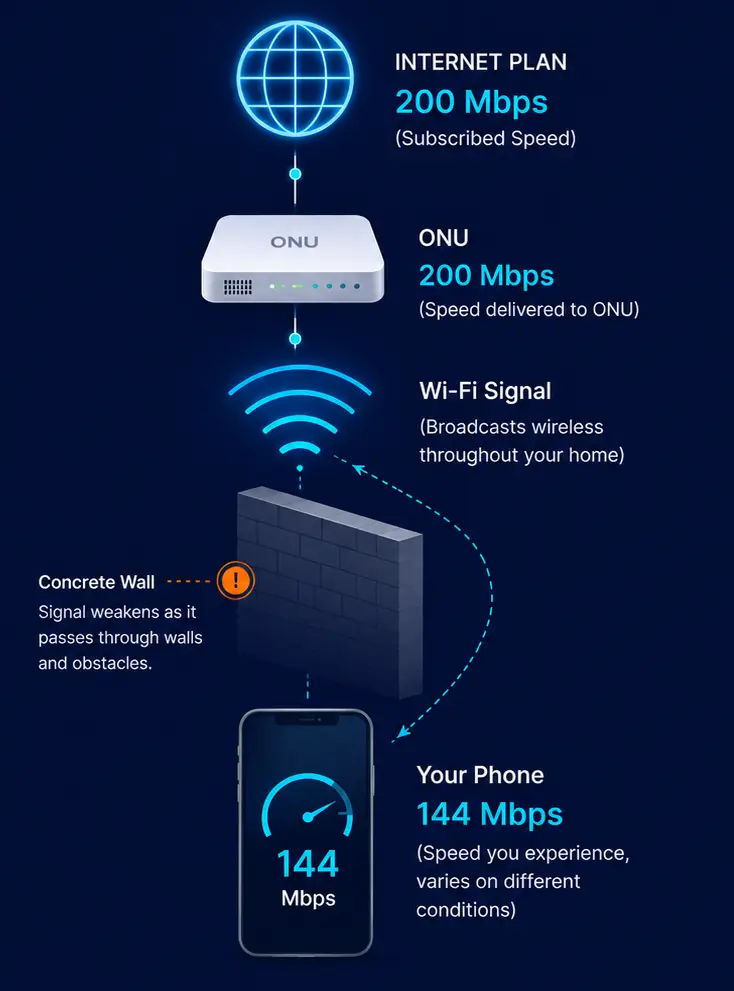
Your internet plan determines the maximum speed delivered to your Optical Network Unit (ONU). From there, your Wi-Fi broadcasts that connection wirelessly throughout your home.
The speed you experience on your phone, tablet, or laptop can vary depending on several factors, including your distance from the ONU, the strength of the Wi-Fi signal, nearby interference, and the capabilities of your device.
Because of these factors, the speed shown on your device may be different from the speed included in your internet plan.
Imagine filling a bucket of water using a hose.
The amount of water reaching the bucket depends not only on how much water comes from the tap, but also on how far the hose stretches, whether it’s bent, and how much water leaks along the way.
Your internet works in a similar way. Your plan delivers internet to the ONU, but the Wi-Fi signal still has to travel through your home before it reaches your devices. Along the way, distance, walls, and interference can reduce the speed your phone or laptop receives.
Even if your internet plan delivers the full subscribed speed to your ONU, different devices may experience different speeds depending on where they’re being used and how they connect to your Wi-Fi.
Seeing a lower speed on Wi-Fi doesn’t automatically mean there’s a problem with your internet. In most cases, it’s simply how wireless technology works.
If the troubleshooting guides didn’t resolve your concern, let us know what’s happening and our support team will assist you as quickly as possible.